
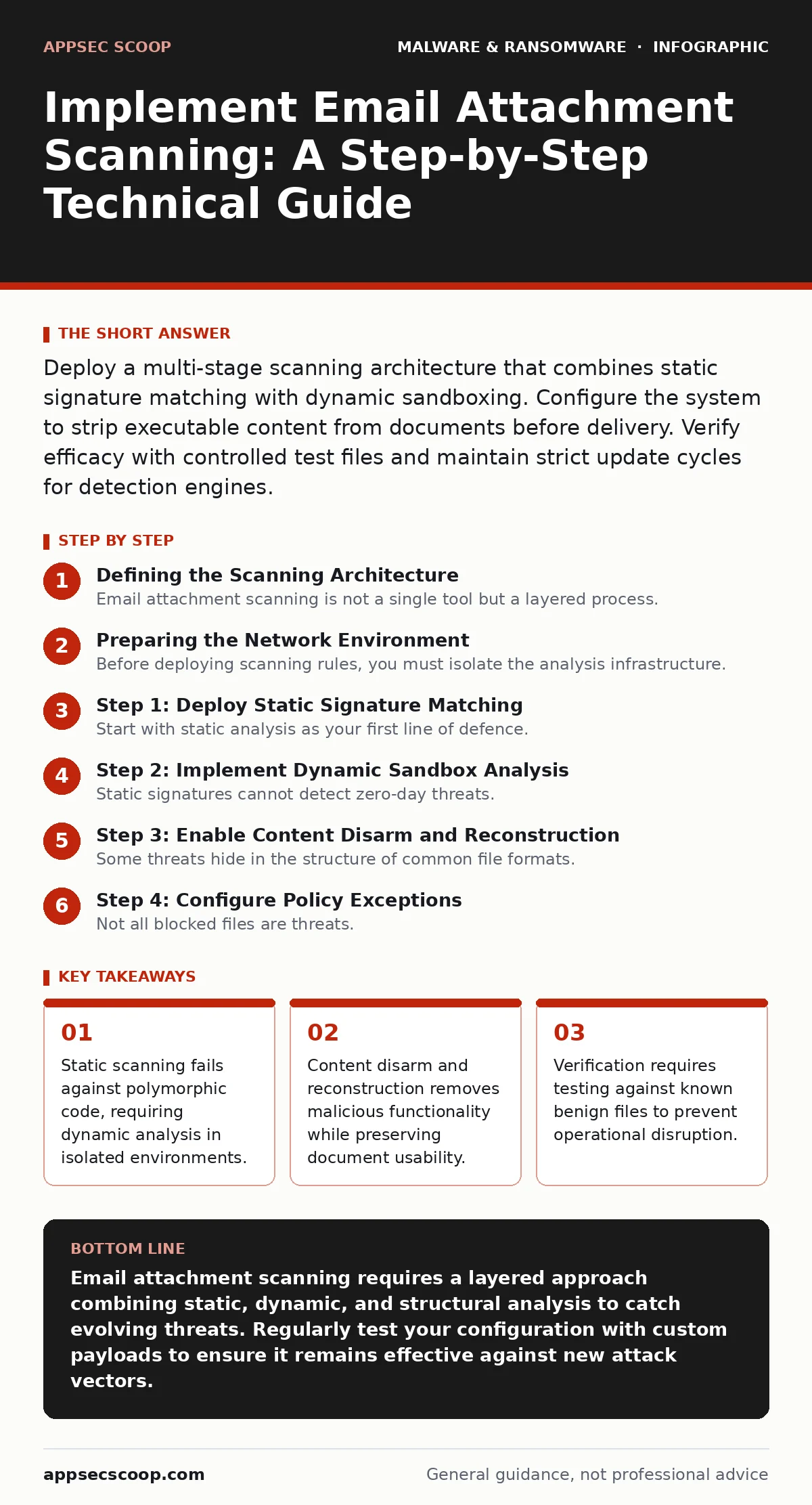
Deploy a multi-stage scanning architecture that combines static signature matching with dynamic sandboxing. Configure the system to strip executable content from documents before delivery. Verify efficacy with controlled test files and maintain strict update cycles for detection engines.
Defining the Scanning Architecture
Email attachment scanning is not a single tool but a layered process. You must distinguish between static analysis, which compares file hashes against known threat databases, and dynamic analysis, which executes the file in an isolated environment to observe behaviour. Static methods are fast but blind to new threats. Dynamic methods catch novel attacks but introduce latency.
Imagine an attacker sends a Word document containing a macro that downloads a secondary payload. Static scanning might see only a standard Office file. Dynamic analysis would trigger the macro in a safe container and observe the network call. You need both mechanisms to cover the full threat surface. Relying on one method leaves a gap that adversaries will exploit.
Preparing the Network Environment
Before deploying scanning rules, you must isolate the analysis infrastructure. The sandboxing engine requires its own network segment to prevent lateral movement if a malware payload escapes the container. This isolation ensures that even if a threat executes, it cannot reach your production systems.
You must also define what constitutes a "scannable" file. Not all attachments are equal. Archives, scripts, and executables pose higher risks than plain text files. Configure your mail gateway to identify file types by their actual content, not just their extension. Attackers often rename a .exe file to .jpg to bypass simple filters.
Step 1: Deploy Static Signature Matching
Start with static analysis as your first line of defence. This method checks file hashes and known patterns against a database of identified threats. It is computationally cheap and provides immediate results. Configure your mail gateway to reject any attachment that matches a known bad signature.
To verify this step works, send a test email with a known benign file, such as a standard PDF. The system should allow it through without delay. Then send a file with a known malicious hash. The system must block it and generate a log entry. If the benign file is blocked, your false positive rate is too high.
Step 2: Implement Dynamic Sandbox Analysis
Static signatures cannot detect zero-day threats. You must implement sandboxing to analyse suspicious files dynamically. When an attachment lacks a clear reputation, the system routes it to a virtual machine for execution. The sandbox observes file system changes, registry modifications, and network connections.
This process adds seconds to delivery time. You must balance security with user experience. Configure the system to release files that show no suspicious behaviour after a set timeout. If the sandbox detects malicious activity, the email is quarantined. This step catches threats that static scanning misses.
Step 3: Enable Content Disarm and Reconstruction
Some threats hide in the structure of common file formats. Content disarm and reconstruction (CDR) strips an attachment of all executable code and metadata before delivering it. It rebuilds the document from scratch, preserving text and images but removing macros, scripts, and embedded objects.
This method is effective against trojans hidden in Office documents. It ensures that even if a user opens the file, no code can execute. Verify this by sending a document with a harmless macro. The delivered version should contain the text but not the macro functionality. This prevents macro security settings from being bypassed by user error.
| Method | Speed | Detection Rate | User Impact |
|---|---|---|---|
| Static Signature | High | Low | None |
| Sandbox Analysis | Medium | High | Delay |
| Content Disarm | High | Medium | Low |
See also: CEO Fraud: How Impersonation Attacks Bypass Standard Controls · Implementing Behavior-Based Detection: A Practical Rollout Plan
Step 4: Configure Policy Exceptions
Not all blocked files are threats. Internal teams may need to exchange specific file types for legitimate business reasons. You must create exception lists for trusted senders or specific file hashes. However, keep these exceptions narrow and reviewed regularly.
Too many exceptions weaken your defence. If you allow all files from a specific domain, you create a blind spot. Attackers can compromise that domain and use it to deliver malware. Define exceptions based on strict criteria, such as verified business partners, rather than broad domains.
Step 5: Integrate with Incident Response
Scanning is not the end of the process. When a threat is detected, the system must alert your security operations centre. Integrate your email gateway with your incident response platform. This allows automated containment actions, such as blocking the sender or isolating the recipient’s account.
Without integration, alerts remain isolated data points. You must correlate email threats with other indicators of compromise. This holistic view helps you understand if an email attack is part of a larger campaign. It also speeds up the removal of malware from a Windows PC if a bypass occurs.
Verification and Upkeep
Your scanning system requires continuous validation. Use a controlled test suite to check both detection and false positive rates. Send a variety of test files weekly. Include benign documents, archives with nested files, and documents with embedded scripts.
Monitor the performance of your sandboxing engine. If latency increases, users may bypass security by using personal email accounts. This behaviour exposes your organisation to USB malware and other risks. Balance security controls with usability to maintain compliance.
- Test static scanning with known benign files
- Verify dynamic analysis catches simulated threats
- Confirm content disarm removes executable content
- Review exception lists for unnecessary broadness
- Check integration with incident response platforms
Addressing Edge Cases
Some file types are difficult to scan. Large archives may exceed sandbox limits. Encrypted files cannot be analysed without the password. You must define policies for these edge cases. Reject encrypted attachments unless they are from trusted sources.
Imagine a user receives a large zip file from a vendor. The system cannot scan the contents due to size limits. Your policy should require the vendor to provide an unencrypted, scanned version. This prevents attackers from using size limits to bypass detection.
Long-Term Maintenance
Threats change, and so must your scanning rules. Update your signature databases and sandbox profiles regularly. Review blocked files to identify trends. If you see a spike in blocked macro documents, adjust your policies to be more aggressive against Office files.
You must also train users on the limits of automated scanning. No system is perfect. Users should remain cautious about unexpected attachments, even if they pass scanning. This human layer complements your technical controls. It reduces the risk of social engineering attacks that bypass technical defences.
Key takeaways
- Static scanning fails against polymorphic code, requiring dynamic analysis in isolated environments.
- Content disarm and reconstruction removes malicious functionality while preserving document usability.
- Verification requires testing against known benign files to prevent operational disruption.
Email attachment scanning requires a layered approach combining static, dynamic, and structural analysis to catch evolving threats. Regularly test your configuration with custom payloads to ensure it remains effective against new attack vectors.
Frequently asked questions
How do I prevent false positives from blocking legitimate business files?
Implement a whitelist for trusted senders and use content disarm to sanitize files rather than blocking them entirely. Review blocked files regularly to refine your rules.
Can sandboxing detect all types of malware?
No. Sandbox evasion techniques exist. Attackers can detect virtual environments and alter their behaviour. Combine sandboxing with static analysis and user training for better coverage.
What should I do if a malicious file bypasses scanning?
Immediately isolate the affected system and investigate the scope of the breach. Use your incident response plan to contain the threat and remove any installed malware.
Is content disarm safe for all file types?
It is safe for documents and images. It may break complex formatting or functionality in specialized files. Test CDR with your specific business document types before wide deployment.
How this guide was produced: written by the AppSec Scoop editorial team with AI assistance, checked against the public references listed below, and reviewed when the facts change. See our editorial policy or report an error.