
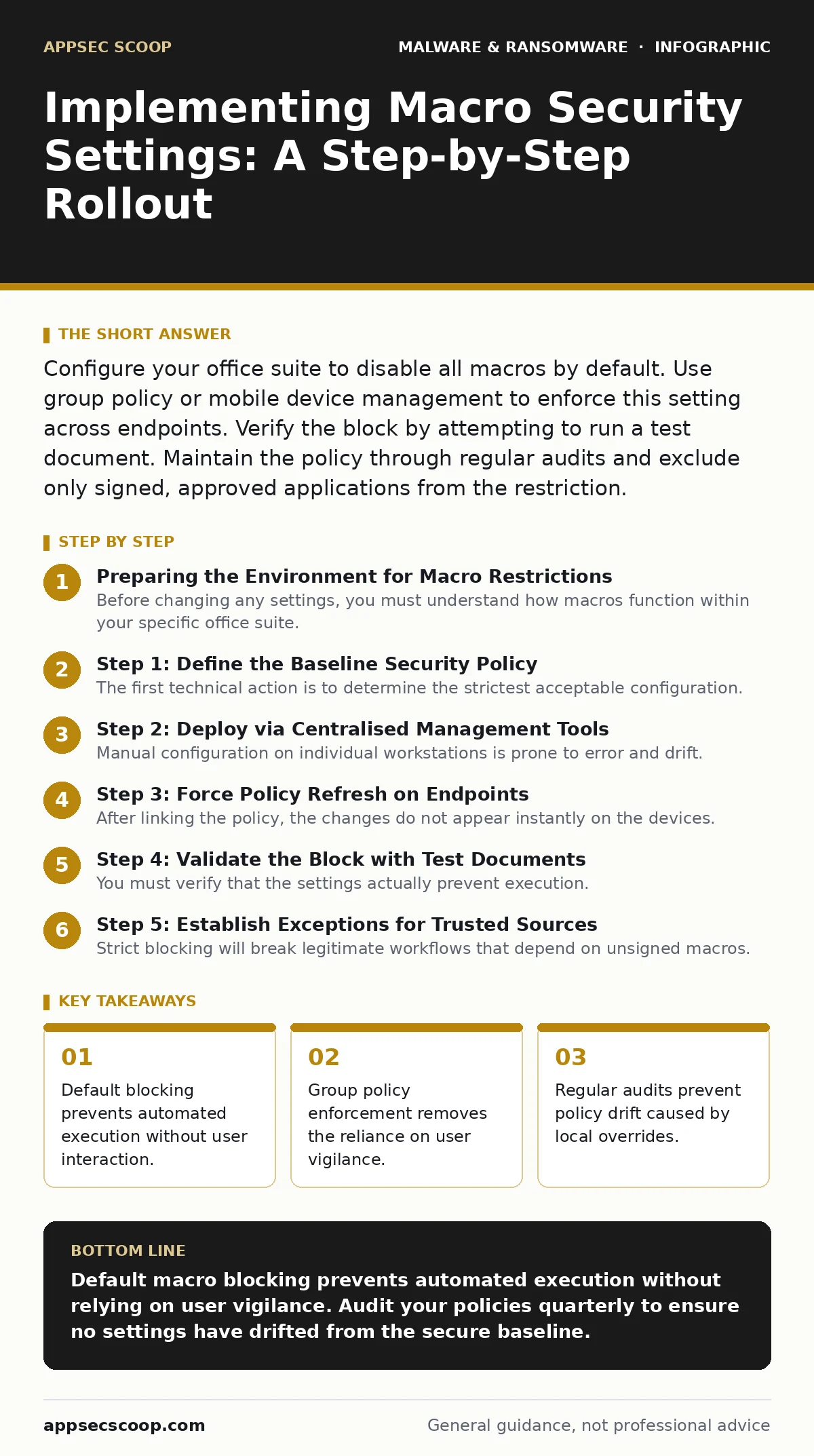
Configure your office suite to disable all macros by default. Use group policy or mobile device management to enforce this setting across endpoints. Verify the block by attempting to run a test document. Maintain the policy through regular audits and exclude only signed, approved applications from the restriction.
Preparing the Environment for Macro Restrictions
Before changing any settings, you must understand how macros function within your specific office suite. Macros are small programs embedded in documents that automate tasks. While useful for repetitive data entry, they provide a direct path for malware payloads to execute code on a victim’s machine. The primary risk is not the macro itself, but the ability of a document to trigger it automatically upon opening.
You should inventory your current usage of macro-enabled files. Identify which departments rely on legacy spreadsheets or templates that contain scripts. This inventory helps you predict where friction will occur. Without this map, users will bypass security controls to maintain productivity, rendering your efforts useless.
Step 1: Define the Baseline Security Policy
The first technical action is to determine the strictest acceptable configuration. For most modern environments, the baseline should be to disable all macros, including those with digital signatures, unless explicitly trusted. This approach assumes that any macro is suspicious until proven otherwise. It shifts the burden of proof from the user to the administrator.
Check your office suite documentation for the specific setting names. In many suites, this is labelled as "Disable all macros without notification" or "Block all macros". Ensure this setting applies to all file types that support scripting, such as Word documents, Excel spreadsheets, and PowerPoint presentations.
Step 2: Deploy via Centralised Management Tools
Manual configuration on individual workstations is prone to error and drift. You must deploy these settings using centralised management tools. Group Policy Objects (GPO) on Windows or Mobile Device Management (MDM) profiles on macOS are the standard mechanisms. These tools push the configuration to every managed device simultaneously.
Create a new policy object dedicated to office macro security. Within this object, locate the security settings for your specific office application. Set the macro security level to the highest restriction. Save the policy and link it to the appropriate Organizational Units (OUs) that contain your user computers. This ensures every device in that unit receives the new security posture.
Step 3: Force Policy Refresh on Endpoints
After linking the policy, the changes do not appear instantly on the devices. You must force a policy refresh to apply the new settings immediately. This can be done remotely through your management console or locally via command line tools. Forcing the refresh ensures that the protection is active before the next business day begins.
Verify that the policy has been applied by checking the system logs on a sample of devices. Look for successful application of the new GPO or MDM profile. If the logs show errors, investigate the connectivity or permission issues preventing the policy from taking effect. Do not proceed until you confirm successful application on a representative sample.
Step 4: Validate the Block with Test Documents
You must verify that the settings actually prevent execution. Create a benign test document containing a simple macro. This macro should perform a harmless action, such as creating a text file on the desktop. Save the document with a macro-enabled extension.
Open the test document on a managed workstation. The application should block the macro immediately. It should not prompt the user to enable content. If a prompt appears, your policy is not strict enough. Adjust the settings to remove any notification prompts that allow manual enabling. The goal is silent blocking.
See also: Botnets: Why Small Teams Get Hijacked and How to Stop It
Step 5: Establish Exceptions for Trusted Sources
Strict blocking will break legitimate workflows that depend on unsigned macros. You must create a process for exceptions. Identify internal documents that are critical and cannot be rewritten. These documents should be digitally signed with a certificate issued by your organisation.
Configure your policy to trust macros only if they are signed by your internal certificate authority. This creates a whitelist approach. Any macro not signed by your trusted certificate is blocked. This balances security with operational necessity. Ensure the signing process is managed by a small, secure team to prevent certificate misuse.
Step 6: Monitor for Policy Drift and Bypasses
Security settings degrade over time. Users may change local settings if they have administrative rights. Software updates may reset configurations. You must monitor for deviations from the baseline policy. Use your management tools to generate reports on devices that do not match the expected configuration.
Investigate any devices that show non-compliance. Determine if the deviation is intentional or accidental. If accidental, re-apply the policy. If intentional, assess the risk and either justify the exception or enforce compliance. Regular monitoring ensures that your macro security remains effective against evolving threats.
Verification Checklist
Use this checklist to confirm your implementation is complete and effective.
- Policy is configured to disable all macros by default.
- Policy is deployed via Group Policy or MDM.
- Policy refresh has been forced on all managed devices.
- Test documents are blocked without user prompts.
- Internal signing certificates are established for exceptions.
- Monitoring is active to detect policy drift.
Upkeep and Long-Term Maintenance
Maintaining macro security requires ongoing attention. Review your exception list quarterly. Remove any certificates or documents that are no longer in use. This reduces the attack surface. If a signed macro is compromised, the damage is contained to the specific document, not the entire system.
Educate users on why macros are blocked. Explain that the silence is a feature, not a bug. When they encounter a blocked macro, they should report it to IT rather than seeking a workaround. This feedback loop helps you identify legitimate needs and refine your exceptions.
Key takeaways
- Default blocking prevents automated execution without user interaction.
- Group policy enforcement removes the reliance on user vigilance.
- Regular audits prevent policy drift caused by local overrides.
Default macro blocking prevents automated execution without relying on user vigilance. Audit your policies quarterly to ensure no settings have drifted from the secure baseline.
Frequently asked questions
Can users override the macro security settings?
If users have local administrative rights, they can change settings manually. However, centralised policies will often reset these changes upon the next refresh, depending on your configuration.
Does this protect against all types of malware?
No. This only stops macros from executing. It does not protect against **trojans** delivered via other vectors, such as executable files or drive-by downloads.
How do I handle legacy applications that require macros?
Isolate these applications on specific machines. Use application whitelisting to allow only those specific programs to run macros, while keeping the rest of the network locked down.
What if a user claims a critical document is blocked?
Verify the document’s source. If it is internal, sign it with your certificate. If it is external, advise the user to request a macro-free version from the sender.
How this guide was produced: written by the AppSec Scoop editorial team with AI assistance, checked against the public references listed below, and reviewed when the facts change. See our editorial policy or report an error.