
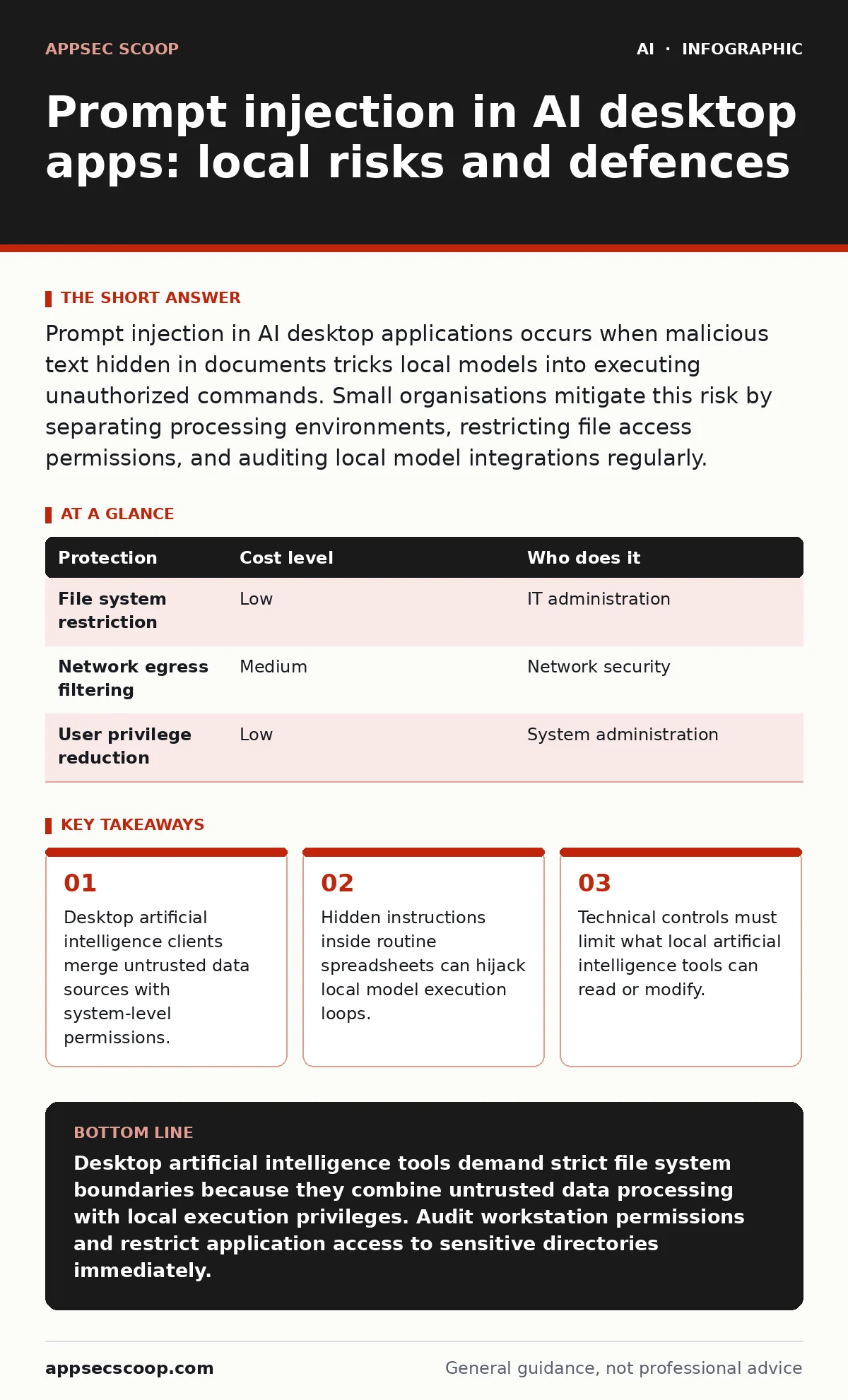
Prompt injection in AI desktop applications occurs when malicious text hidden in documents tricks local models into executing unauthorized commands. Small organisations mitigate this risk by separating processing environments, restricting file access permissions, and auditing local model integrations regularly.
Why desktop artificial intelligence creates novel risks
Desktop artificial intelligence applications blur the traditional boundary between data and instructions by reading local files directly. Software running on employee workstations often has permission to open spreadsheets, read emails, and execute local scripts without intermediate validation steps. Small organisations frequently adopt these tools to boost productivity without realising that local software execution contexts lack the strict tenant isolation found in enterprise cloud environments.
How malicious instructions bypass local boundaries
Text manipulation exploits occur when an artificial intelligence model processes untrusted external content containing embedded control sequences. Malicious actors hide overriding commands inside seemingly harmless documents, invoices, or customer reviews downloaded from the internet. When the desktop tool reads the file to provide a summary, the language model treats the hidden text as a legitimate system instruction rather than mere data.
The hidden cost of convenience features
Modern desktop assistants often feature deep operating system integration, allowing them to draft emails, organise folders, and trigger automated workflows independently. Convenience features expand the potential impact of a successful exploit by granting artificial intelligence models broad operating system privileges. Security teams managing broader challenges outlined in guides like prompt injection attacks must recognise that desktop tools multiply these software vulnerabilities across every employee workstation.
Practical protections for lean teams
Organisations with limited security staff can deploy several foundational controls to restrict what desktop models can achieve during a compromise. Restricting application permissions ensures that language models cannot execute arbitrary shell commands or access sensitive system directories. Evaluating software procurement choices through rigorous processes similar to those discussed in AI vendor assessments helps filter out desktop clients with excessive default privileges.
| Protection | Cost level | Who does it |
|---|---|---|
| File system restriction | Low | IT administration |
| Network egress filtering | Medium | Network security |
| User privilege reduction | Low | System administration |
Evaluating software behaviour through testing
Systematic evaluation requires security personnel to feed intentionally crafted test documents into desktop artificial intelligence clients to observe how they handle conflicting instructions. Desktop applications should fail safely by refusing to execute external commands found inside untrusted user data. Establishing formal boundaries for machine learning tools aligns with governance structures described in broader frameworks such as AI risk management.
See also: Treat AI Models as Untrusted Insiders: A Step-by-Step Implementation · AI Agent Hijacking Prevention Checklist for Secure Workflows
What to ask an IT provider
External technology partners often install desktop productivity suites without configuring the underlying security baselines required for safe artificial intelligence usage. Asking precise technical questions forces providers to acknowledge limitations in default software deployments.
- Which specific operating system APIs can this desktop artificial intelligence assistant access during normal document processing?
- How does the application prevent untrusted text inputs from overriding core system prompts or safety boundaries?
- Where are conversation histories and cached local files stored on the physical workstation?
- What mechanisms exist to block unauthorised network egress when a local model processes sensitive data?
Maintaining operational resilience over time
Security configurations degrade as software vendors push automated updates that frequently reset custom privacy settings and file permissions. Regular reviews of installed desktop tools ensure that newly introduced artificial intelligence features do not silently expand local system access. Small teams maintain better operational security by treating desktop models as untrusted processors rather than reliable administrative assistants.
Key takeaways
- Desktop artificial intelligence clients merge untrusted data sources with system-level permissions.
- Hidden instructions inside routine spreadsheets can hijack local model execution loops.
- Technical controls must limit what local artificial intelligence tools can read or modify.
Desktop artificial intelligence tools demand strict file system boundaries because they combine untrusted data processing with local execution privileges. Audit workstation permissions and restrict application access to sensitive directories immediately.
Frequently asked questions
Can prompt injection affect artificial intelligence tools that run entirely offline on a local computer?
Local execution prevents data from leaking to remote servers during an exploit, but malicious instructions can still manipulate local files or launch authorised applications if system permissions are too broad.
Why do small businesses face higher risks from desktop artificial intelligence vulnerabilities?
Smaller organisations rarely employ dedicated security engineers to configure strict application sandboxes, leaving default installation settings exposed to malicious file inputs.
How do malicious instructions hide inside normal business documents?
Attackers format text using white font, tiny point sizes, or invisible control characters that human readers ignore but language models parse during routine summarisation tasks.
What is the most effective way to test a desktop artificial intelligence app for injection vulnerabilities?
Security teams paste controlled test prompts containing conflicting instructions into sample files to observe whether the application executes unauthorised actions or ignores the embedded commands.
How this guide was produced: written by the AppSec Scoop editorial team with AI assistance, checked against the public references listed below, and reviewed when the facts change. See our editorial policy or report an error.