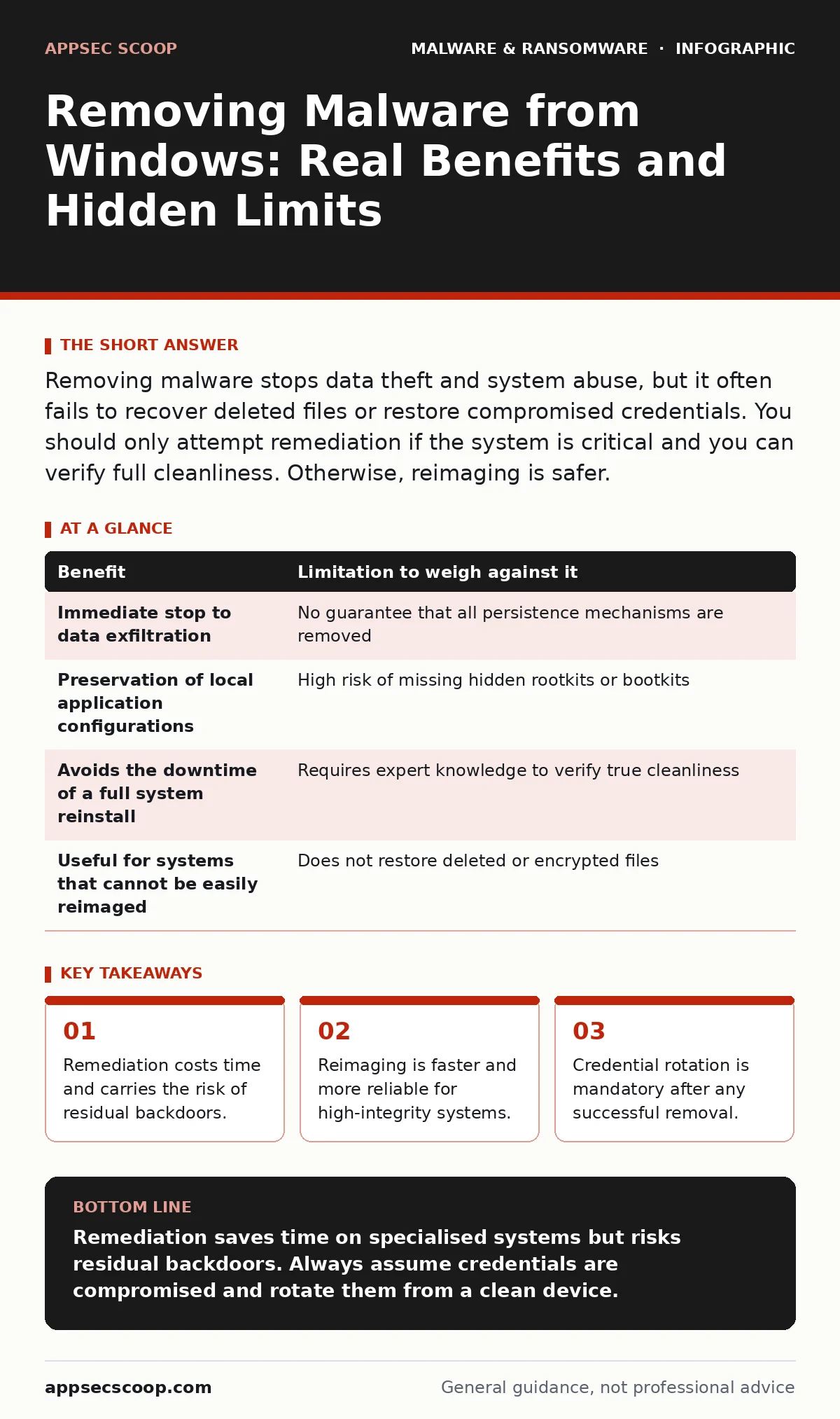
Removing malware stops data theft and system abuse, but it often fails to recover deleted files or restore compromised credentials. You should only attempt remediation if the system is critical and you can verify full cleanliness. Otherwise, reimaging is safer.
The Illusion of a Clean Sweep
When you remove malware from a Windows PC, you expect the machine to return to its pre-infection state. This expectation is rarely met. The primary benefit of removal is the immediate cessation of malicious activity. The malware stops exfiltrating data, stops mining cryptocurrency, and stops acting as a node in a botnet. A botnet is a network of compromised computers controlled by an attacker. Stopping this activity preserves your immediate operational capacity.
However, the limitation is structural. Malware does not sit in a single file. It modifies system registries, installs drivers, and alters boot processes. Removing the visible executable does not reverse these changes. You are left with a system that functions but may still contain hidden footholds. The attacker may have installed a bootkit. A bootkit modifies the Master Boot Record or the System BIOS to load before the operating system. Standard antivirus tools run within the OS and cannot see or remove code that loads before the OS starts.
The Cost of Deep Cleaning
The work required to truly clean a system is disproportionate to the effort of wiping it. You must manually audit scheduled tasks, service configurations, and user profiles. Each step introduces human error. A missed scheduled task can reinstate the infection hours later. This delay is dangerous because attackers often monitor the system for signs of struggle. If they detect that you are hunting their code, they may activate a payload designed to encrypt your files. This is why understanding malware payloads is critical. A payload is the harmful part of the malware that executes after initial access. Some payloads are dormant until triggered by specific system changes.
Furthermore, the time spent cleaning is time spent vulnerable. While you search for hidden processes, the attacker may still have active connections. They can watch you work. They can see which files you delete and which tools you use. This allows them to adapt their evasion techniques. You are not just cleaning a house; you are cleaning it while the burglar watches from the garden.
| Benefit | Limitation to weigh against it |
|---|---|
| Immediate stop to data exfiltration | No guarantee that all persistence mechanisms are removed |
| Preservation of local application configurations | High risk of missing hidden rootkits or bootkits |
| Avoids the downtime of a full system reinstall | Requires expert knowledge to verify true cleanliness |
| Useful for systems that cannot be easily reimaged | Does not restore deleted or encrypted files |
The Credential Trust Gap
The most overlooked consequence of malware removal is the destruction of trust. Even if you successfully remove every file and registry key, you cannot know what data the malware read while it was active. It may have captured keystrokes. It may have dumped browser cookies. It may have extracted tokens from your memory. These credentials remain valid until you change them.
You must assume that every password stored on that machine is compromised. This includes email accounts, banking portals, and internal service accounts. Rotating these credentials is tedious. It breaks automation scripts. It disrupts user workflows. The malware is gone, but the fallout requires administrative effort that often exceeds the cleaning process itself. This is the hidden cost of remediation. You have saved the machine, but you have lost the convenience of your digital identity.
When It Is Worth It
Remediation is a rational choice when the cost of reimaging exceeds the cost of cleaning. This usually applies to specialised workstations. Suppose you have a server running a legacy application that requires manual configuration. Reinstalling the OS means rebuilding that configuration. If the documentation is poor, this rebuild may take days. In this case, spending hours to clean the malware is economically sound.
It is also worth it when you need forensic evidence. If you wipe the drive, you destroy the malware sample. If you clean it carefully, you preserve the artifacts. These artifacts can help you understand the attack vector. Did the attacker exploit a vulnerability in email attachment scanning? Email attachment scanning is a security measure that checks files sent via email for malicious code. Understanding the vector helps you prevent future incidents. You can patch the vulnerability or adjust your scanning rules.
Another scenario is when the system is isolated. If the infected PC is not connected to the network, the risk of lateral movement is zero. You can take your time. You can use offline tools. You can verify the system thoroughly before reconnecting it. Isolation turns a high-pressure emergency into a controlled laboratory exercise.
When It Is Not
Remediation is foolish when speed and certainty matter. If the system is a standard office PC, reinstall the OS. The configuration can be rebuilt in minutes. The risk of missing a hidden backdoor is not worth the effort. The attacker may have installed a trojan. A trojan is malware that disguises itself as legitimate software. Removing the disguise is easy; removing the hidden functionality is hard. A fresh install guarantees that no trojan code remains.
It is also not worth it when the malware has encrypted your files. Removal does not decrypt data. You need a backup. If you do not have a backup, cleaning the malware is pointless. The files are gone. The system is now a clean shell with no content. You may as well start fresh.
Furthermore, do not attempt remediation if you lack the skills. If you rely on a single antivirus tool, you are blind to advanced threats. You need to understand behavior-based detection. Behavior-based detection monitors actions rather than file signatures. It looks for suspicious patterns like mass file deletion or registry modification. Without this insight, you are guessing. Guessing is not a security strategy.
See also: Botnets: Why Small Teams Get Hijacked and How to Stop It
The Verification Trap
The hardest part of remediation is knowing when to stop. How do you prove the system is clean? You cannot. You can only prove that your tools found nothing. This is a negative result. It does not confirm the absence of evil; it confirms the absence of detection. Attackers write code to evade detection. They use techniques like code obfuscation and packing. These techniques hide the true nature of the malware from scanners.
To mitigate this, you must use multiple detection methods. Combine signature-based scanning with behavioral analysis. Use sandboxing. Sandboxing is the practice of running suspicious files in an isolated environment to observe their behavior. If the malware behaves maliciously in the sandbox, you know it is bad. If it runs cleanly, you do not know it is good. It may simply be dormant.
The Path to Recovery
If you decide to clean the system, follow a strict order. First, disconnect the machine from the network. This stops data theft and prevents the malware from calling home for new instructions. Second, boot from a clean external drive. This ensures you are running trusted tools on an untrusted system. Third, scan and remove identified threats. Fourth, audit the system for changes. Check user accounts, scheduled tasks, and installed services. Fifth, reboot and scan again. Some malware only activates on boot.
Finally, change all passwords. Do this from a different, known-clean device. Do not use the infected PC to reset credentials. The malware may still be capturing keystrokes. Once you have rotated credentials, monitor the system closely. Watch for unusual network traffic or process spikes. If anything looks wrong, wipe the drive. The goal is not to save the machine at all costs. The goal is to maintain security.
The Final Decision
The decision to remediate or reimagine is a risk calculation. Weigh the value of the data against the certainty of the clean. If the data is critical and unique, and you have the skills to verify cleanliness, remediate. If the data is replaceable, or if you doubt your ability to find hidden threats, reimagine. The worst outcome is not a wiped drive. The worst outcome is a cleaned drive that still talks to the attacker.
Key takeaways
- Remediation costs time and carries the risk of residual backdoors.
- Reimaging is faster and more reliable for high-integrity systems.
- Credential rotation is mandatory after any successful removal.
Remediation saves time on specialised systems but risks residual backdoors. Always assume credentials are compromised and rotate them from a clean device.
Frequently asked questions
Can I keep my files if I remove malware?
Yes, but you must scan every file before using it. Malware may have infected documents or spreadsheets, especially if they use macros. Check your **macro security settings** to prevent re-infection from these files.
Does removing malware restore deleted files?
No. Removal only stops the malicious process. It does not reverse file deletions or encryption. You must rely on backups for data recovery.
How do I know if the malware is really gone?
You cannot know for certain. You can only reduce uncertainty by using multiple detection methods and monitoring system behavior over time. If you see unusual activity, assume it is still present.
Should I format the hard drive instead?
Formatting is the safest option for standard systems. It removes all software, including hidden malware. It is faster and more reliable than manual cleaning for most users.
How this guide was produced: written by the AppSec Scoop editorial team with AI assistance, checked against the public references listed below, and reviewed when the facts change. See our editorial policy or report an error.